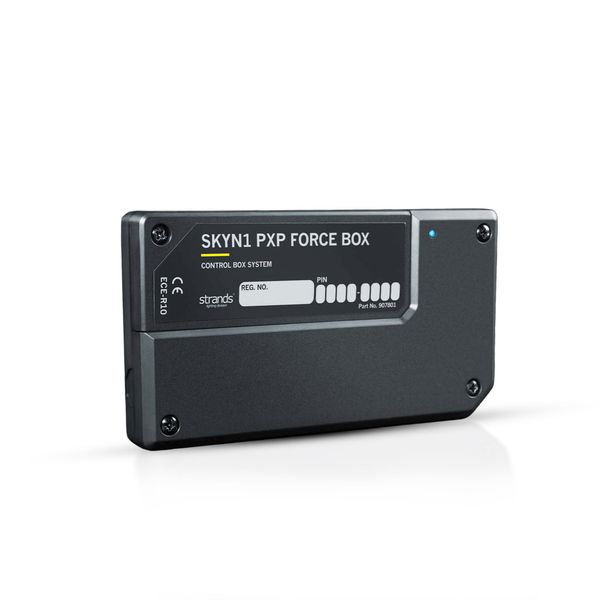
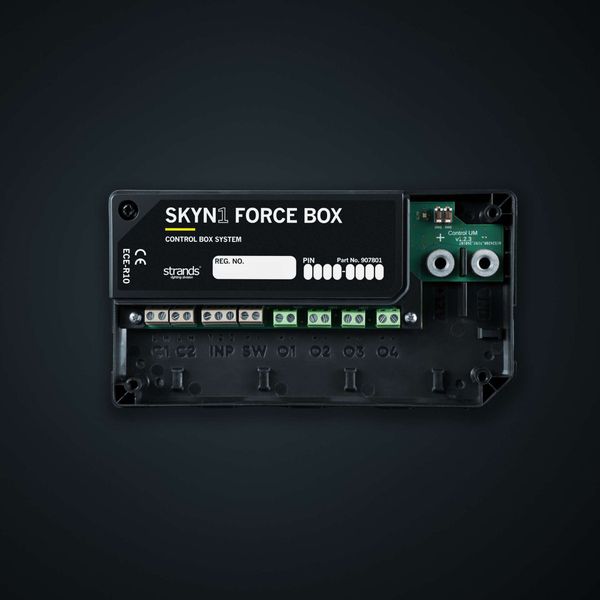
Relay box STRANDS SKYN1 PXP Force Box, 9-30V
A handy electrical component for versatile control of vehicle lighting and other electrical equipment via the Strands Control app. Features four outputs and three signal inputs. Suitable for both 12 V and 24 V systems. Max. load 60 A.
Product Faq
A handy electrical component for versatile control of vehicle lighting and other electrical equipment via the Strands Control app. Features four outputs and three signal inputs. Suitable for both 12 V and 24 V systems. Max. load 60 A.
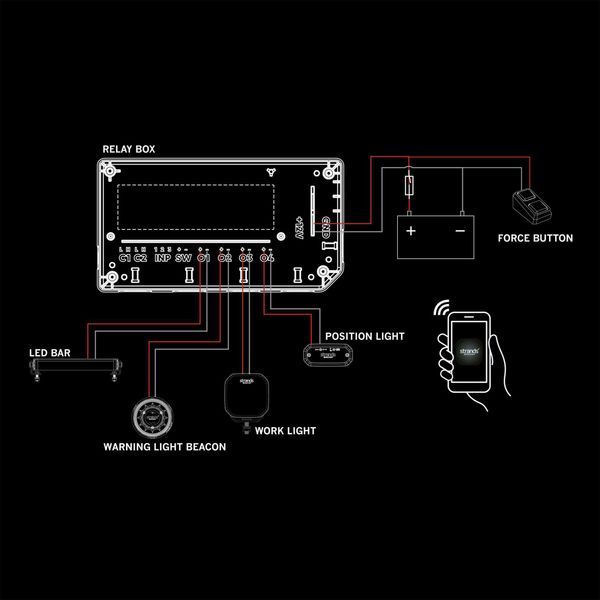
Strands SKYN1 PXP Force Box is a programmable relay box that allows you to conveniently control vehicle lighting and electrical accessories through a single system. Instead of using separate relays and switches, devices are connected to the Force Box and their functions are configured using the Strands SKYN1 app. The relay box features four outputs and three signal inputs and can be used to control driving lights, work lights, position lights and reversing lights, for example. Thanks to its wide operating voltage range of 9–30 V, the system is suitable for both 12 V and 24 V systems.
The PXP system does not require specially compatible lights, as the Force Box also works with standard vehicle lighting. This allows you to build a SKYN1 system without replacing the lights already installed on your vehicle. Multiple Force Box units can also be connected to the same system, allowing a single function to control outputs on several relay boxes simultaneously. For physical control, the system can be expanded with SKYN1 PXP Force Button switches, with up to six units supported in the same system.
The Strands SKYN1 app allows you to configure the system settings and control the functions of connected devices. The three signal inputs can be used to activate functions through external control signals from the vehicle. Functions can be controlled using buttons, signal inputs or a combination of both. Each output has a programmable current limit, and the Force Box features automatic overload and short-circuit protection. The maximum load per output is 15 A, while the relay box supports a total maximum load of 60 A. Three-year (36-month) warranty!
Package contents
- Strands SKYN1 PXP Force Box
- 60 A fuse
- Fuse holder
- Mounting screws
- Installation and user manual
Technical specifications
- Brand and model: Strands SKYN1 PXP Force Box
- Operating voltage: 9–30 V DC
- Number of outputs: 4
- Number of signal inputs: 3
- Maximum load per output: 15 A @ 12 V / 10 A @ 24 V
- Maximum total power: 720 W @ 12 V / 960 W @ 24 V
- Maximum permitted fuse: 60 A @ 12 V / 40 A @ 24 V
- Connection: M6 screw terminal
- Material: Plastic (PA6)
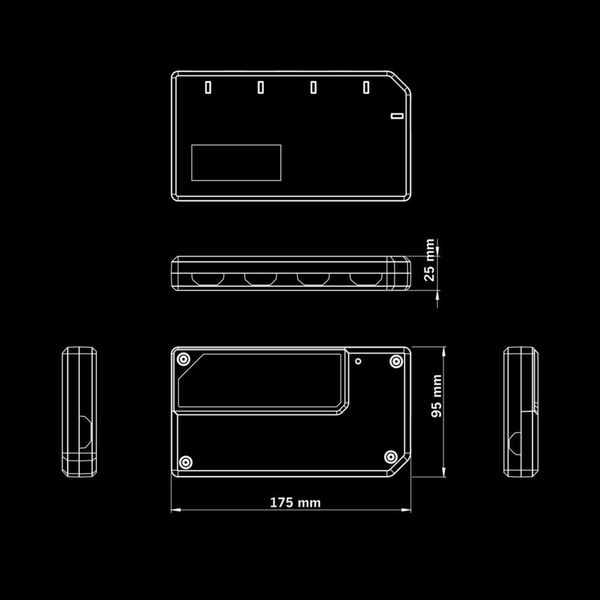
- Dimensions: 175 x 95 x 25 mm
- Weight: 260 g
- Wireless connection: Bluetooth
- IP rating: IP20
- Operating temperature: -35 to +45 °C
- Other features: Programmable voltage protection, temperature monitoring
- Approvals: ECE R10, CE
- Warranty: 36 months
Quick guide
1. Installation: Install the Force Box in a dry, weather-protected location, preferably close to the vehicle's battery. The unit must be protected from rain, water splashes and pressure washing. Mount the relay box with the cables pointing downwards to reduce the risk of moisture entering the unit.
2. Connecting the power supply: Connect the Force Box to the vehicle's battery through an external MIDI fuse. The maximum permitted fuse is 60 A for 12 V systems and 40 A for 24 V systems. The fuse must be sized according to the actual current consumption of the connected equipment and the cross-sectional area of the cables used.
3. Connecting the lights: Connect the lights or other compatible electrical devices to outputs O1–O4. The maximum load per output is 15 A @ 12 V or 10 A @ 24 V. If required, external control signals from the vehicle can be connected to the signal inputs.
4. Installing the Strands SKYN1 app: Download the Strands SKYN1 app to an Android or iOS device. Enable Bluetooth and follow the instructions in the app to add a vehicle and search for the Force Box.
5. Adding the Force Box: Select the Force Box from the list of discovered devices and add it to the system. You can name the unit in the app to make it easier to identify. If you are using a Force Button switch, add it to the system in the same way.
6. Configuring functions: Create the desired functions in the app and select which signal inputs or Force Button switches will control them. Then assign each function to one or more Force Box outputs. A single function can also control outputs on multiple Force Box units.
7. Setting the current limit: Set the maximum current for each output according to the actual current consumption of the connected device. The app displays the measured current consumption. Strands recommends setting the current limit slightly above normal operating consumption to allow sufficient margin for startup current.